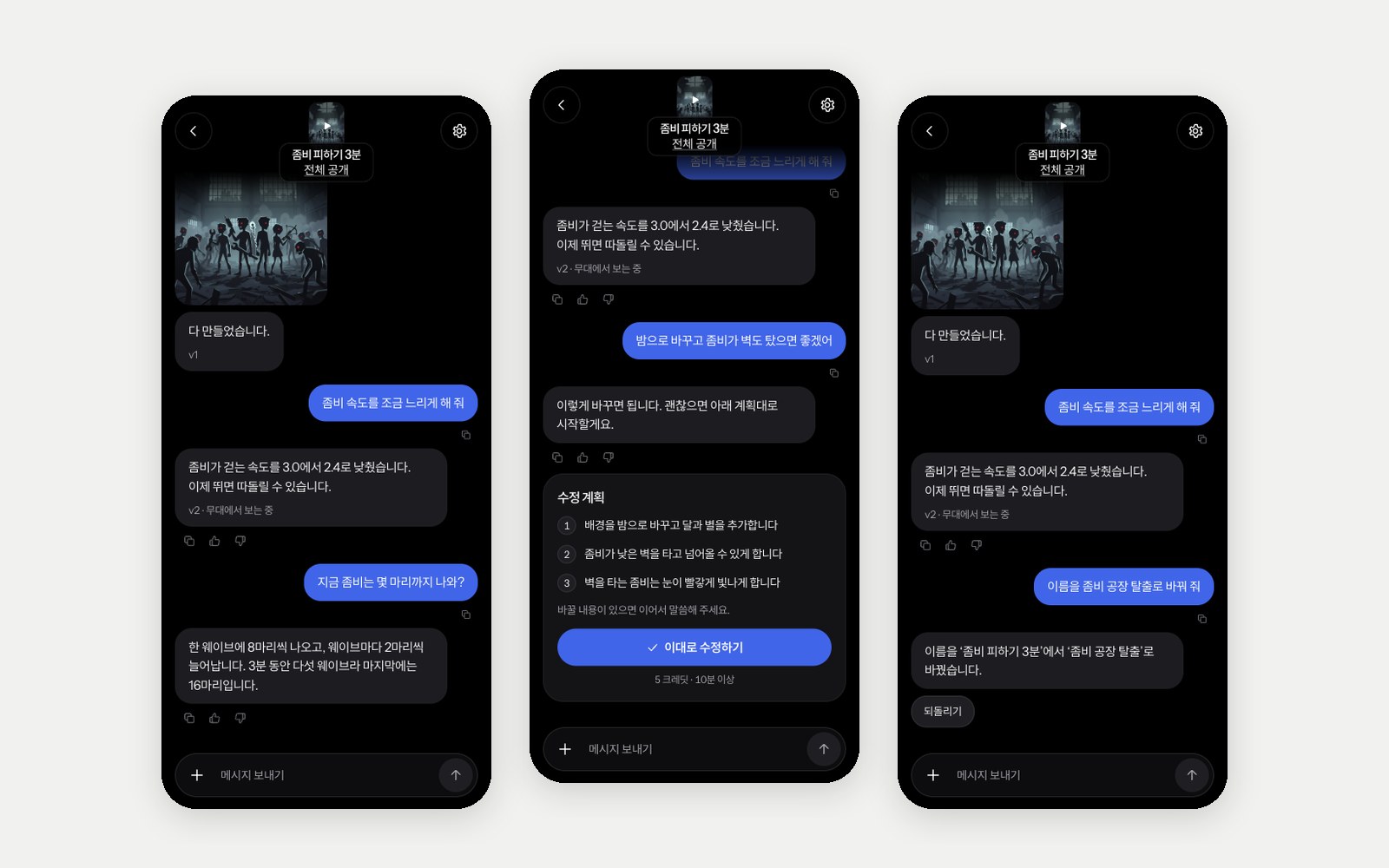
We built a world editor that edits the game right on screen
We built an editor that lets you move and edit objects in AI-made experiences directly on the game screen. Here is how it differs from the approach we dropped in October, how we cut saving from 6 minutes to 7–9 seconds, and why we merged Direct Edit into a single editor.
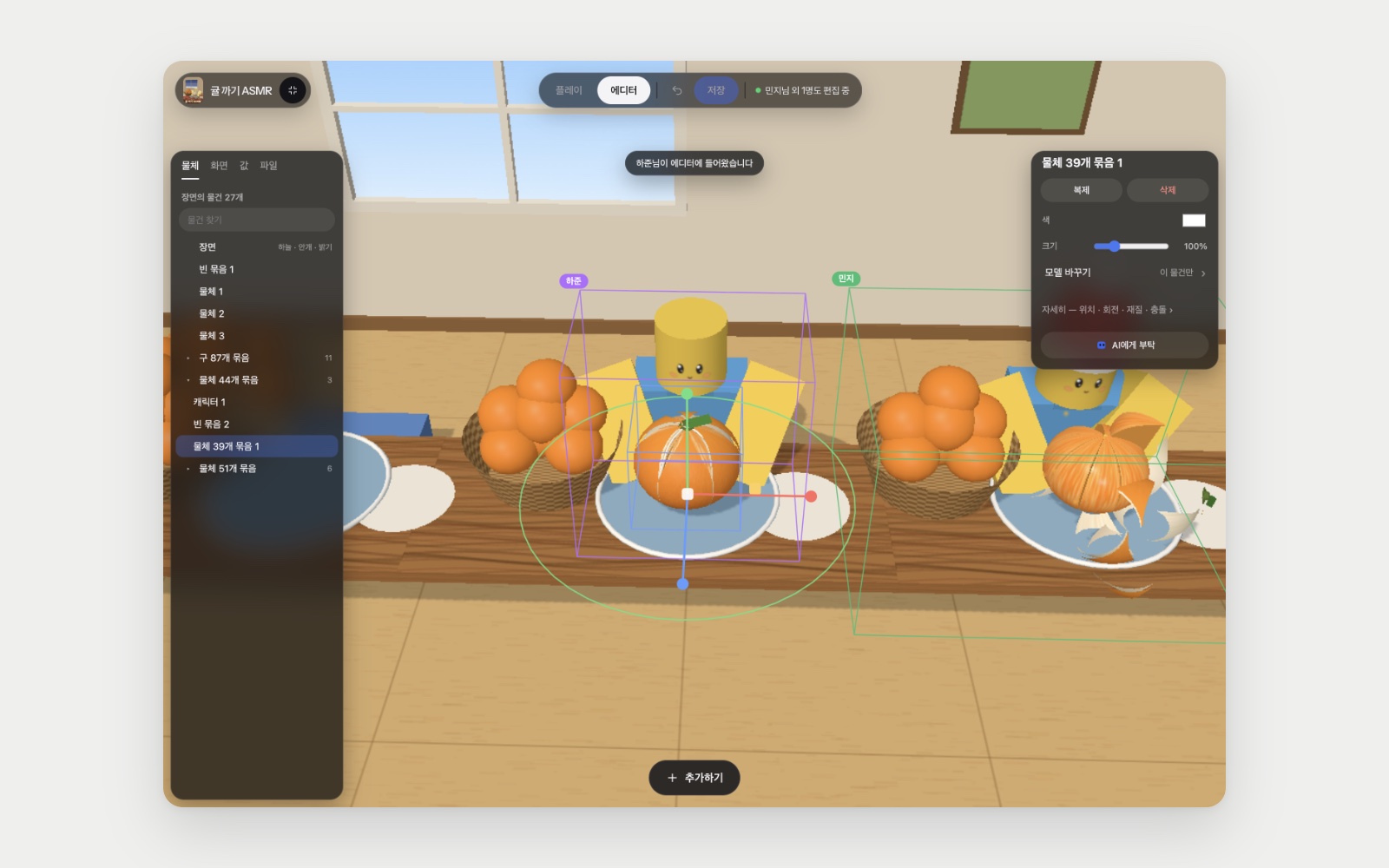
- We rebuilt the editor we dropped in October. The game code stays as it is, and the platform adds a name tag to every object.
- Moving, rotating, resizing, duplicating and deleting 3D objects, adding and swapping models, the game camera, sky, fog and brightness, on-screen text, tuning values, and image and sound files are all edited in one editor. Saving uses no AI and no credits.
- Saving went from 6 minutes at first to 7–9 seconds, and the same editor works on phones. We opened it to all users on November 11, and from November 12 co-developers and clan members can open the same editor together and edit in real time.
At Pogl, you edit experiences by telling the AI what to change. But moving a tree a little to the side or deleting one wall is faster to do by hand than to describe. People kept asking to edit directly, and on November 11 we built a world editor and opened it to all users.
The editor we built in October could not move the real objects
We built an editor once before, in October. We tried two approaches and dropped both.
The first guessed which object was clicked from the position on screen, because the game code the AI wrote did not give objects fixed names. When the guess was wrong, moving something in the editor left the real object where it was.
The second made games read a map file to place objects. The name tags became exact, but as the AI built games to fit the map file format, the games came out flat, with many gray boxes and empty ground.
The game code stays as it is, and the platform adds name tags
At Pogl, the platform adds a name tag the moment the game attaches a 3D object to the scene. The name is the object’s type and the order in which that type was created. A game creates objects in the same order every time it runs, so the same object gets the same name the next time it starts. Older games that bundled their own copy of three.js are tagged the same way, so the editor opens without rebuilding the game.
Edits made in the editor are saved to a single override file (pogl.scene.json). When the game starts, these edits are applied the moment each object joins the scene, so the collision checks the game calculates afterward also follow the new position. The file also records each object’s starting position. If an object with the same name starts somewhere else the next time, the edit is not applied. This keeps the editor from moving the wrong object.
We fixed what got stuck in real games, one by one
The first version worked well in our test game, but real games revealed places where it got stuck. On November 11 alone, we shipped twelve rounds of fixes.
- Many copies drawn at once: In a game that drew 320 cones in one batch, you could not move just one. Now clicking one moves, deletes or recolors only that one.
- Villages built from blocks: Some games put several houses, made of hundreds of blocks, into a single object. We group blocks that touch into one building, so the first click selects a house and a second click selects a single block.
- Older games that bundled three.js: The feature that finds the object under the cursor was missing, so only the ground covering the whole island got selected. We now filter by bounding box first and then check the actual shape.
- Games viewed from an angle above: Moving the camera closer did not make things bigger in these games, so zooming did not work. For these games we zoom by scaling the view.
- 2D games: On-screen text, buttons and images can be edited in every game. Characters and items inside the drawing first needed the game to mark them as movable objects, so this only worked in newly made games. From November 12 the platform picks up each group the game draws together and each image it draws as an object, so you can move and hide them in existing 2D games too.
- Objects made of several parts: Objects like the start gate in a racing game, with posts, a sign and a text board in one group, could only be selected as a whole. We now also handle games that empty a group and fill it again, so the first click selects the whole group and a second click selects one part.
Along the way, we opened 40 games we had edit rights to, one by one. The editor opened in all 40.
Saving went from 6 minutes to 7–9 seconds
The first save in production took 6 minutes. 5 minutes 20 seconds of that was the release check, which launches the game on a separate virtual machine and captures both phone and computer screens.
An editor save does not change a single character of game code; it only changes the override file. So we no longer rerun that check. We run quick checks such as file format and reuse the previous version’s check results. For multiplayer games we only rerun, on the spot, a check that puts two players into the server rules file. We also skip re-reading the game text, and we now upload files eight at a time instead of one by one. The upload change made AI edits and publishing faster too.
At first, multiplayer games went through the 5-minute check again on every save, because we thought the server side needed to be verified. On November 12 a save made while the check machines were busy was blocked because the “ready” signal came late, and checking the same files again passed all three times. The editor does not change the server rules file, so multiplayer games now rerun only the two-player check and save right away. The same game then saved in 7 seconds. Other saves also get a second check when the check fails only for this kind of reason.
Saving creates a new version. You can return to the version before the save at any time from the version list, and for published games the change reaches players when you press [Update].
We merged the places you edit into one editor
Pogl already had a separate “Direct Edit” screen for numbers such as speed, main colors, game text, and image and sound files. With the editor, there were two places to edit, and the two screens looked different. So we moved everything from Direct Edit into the editor and removed the old entry point.
We also simplified the screen. On a computer, a single pill at the top center of the stage, [Play | Editor · ↶ · Save], takes you in and out. When you select an object, you see only its name, [Duplicate] [Delete], color and size; position, rotation, material and collision open under “More.” On a phone there is [✕] [Play | Editor] [⋯] at the top and only [List] [+ Add] at the bottom, so the game’s controls at the bottom of the screen stay uncovered.
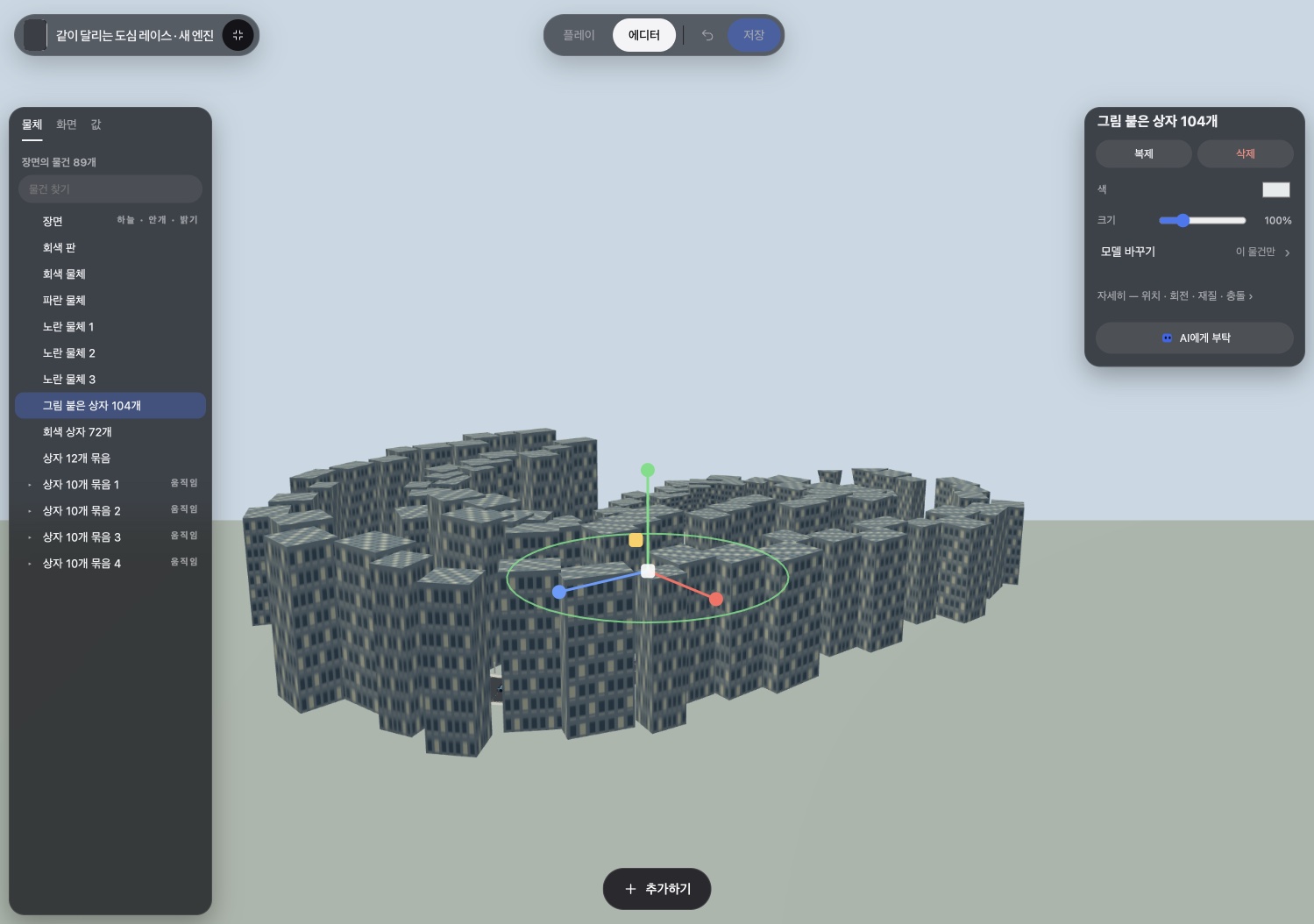
Objects you add can collide too
The platform draws objects added in the editor, but collision is in code the AI wrote separately for each game. So we added a channel (pogl.scene.solids()) through which a game can read where added objects are. Newly made games use this channel from the start.
When you select an added object, there is a “Collision” switch. If an existing game does not use the channel yet, the switch shows “Not connected to AI.” Pressing it puts a connection request in the chat box, and once you send it, the AI connects the game once. After that, every object you add collides. The collision shape can be set per object: off, box, sphere or capsule.
You can also change the game camera and object models
The “Game camera” section in the scene panel changes the view players see while playing: field of view, zoom, back/forward and up/down. The code that makes the camera follow the player is in the game, so the platform moves the camera only right before the game draws a frame and puts it back right after. The game’s follow and aiming logic stays the same; only the view changes. Turn on “View from game camera” to check it in the editor.
You can also swap the model of a single object. Select it and choose a library model or one you uploaded under “Change model”: the original shape is hidden and the new model is shown in the same place at the same size. Game rules such as its position and collisions stay with the original object. “Back to original model” undoes it.
The “Values” tab shows adjustable values such as speed or the number of enemies. For games with few values yet, the “Ask AI to make adjustable values” button at the bottom of the tab has the AI turn settings worth tweaking into adjustable values. This step uses credits because the AI does it.
Several people can edit together
Co-developers and clan members with permission to edit an experience can open its editor together. When someone joins, “Name joined the editor” appears, and “Name is also editing” stays above the stage. Objects someone else has selected get an outline and a name tag in that person’s color.
Every 0.1 seconds the editor compares what it looks like now with what it last sent, and sends only the changed parts over a live channel. Movement is sent while an object is being dragged too, so it moves on the other person’s screen at the same time. Someone who joins later receives the edits the others have not saved yet, so everyone starts from the same view. Undo only reverts your own edits and leaves other people’s edits alone. What is exchanged live is not kept in server records until someone saves.
At first, when two people saved one after the other, the later save overwrote the earlier person’s edits entirely. Now, on save, the server reads the version saved in the meantime and, object by object, keeps only what you changed as yours and keeps the rest from the earlier save. If both people changed the same object, the later save wins. When someone else’s save makes the stage match your screen, your Save button is disabled too.
It continues into AI edits
When you send an AI edit on a version changed in the editor, the AI continues from the edited state. If the AI made a new version while the editor was open, the save is applied on top of that new version so the AI’s changes are not lost.
There is also [Ask AI], which puts the selected object’s name, position, size, color and its starting position in code into the chat box. For things that are hard to do by hand, such as “turn this wall into red brick,” you can continue in words. Since the AI makes that change, it uses credits.